
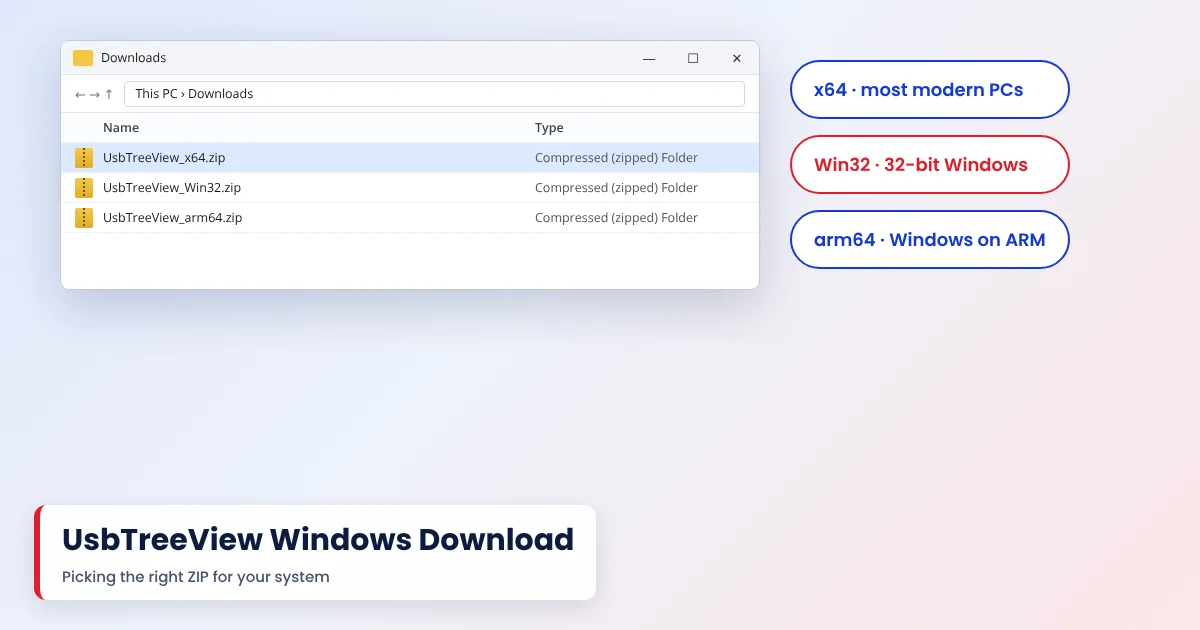
UsbTreeView Windows download options come as three small ZIP archives, one for each processor architecture Windows supports. Choosing the right one takes a few seconds once you know what your system reports, and it ensures the program runs as a native application on your PC.
The Three Builds Explained
| Build | Archive name | Best for |
|---|---|---|
| x64 | UsbTreeView_x64.zip | 64-bit Windows on Intel and AMD processors, the majority of current PCs |
| Win32 | UsbTreeView_Win32.zip | 32-bit editions of Windows |
| ARM64 | UsbTreeView_arm64.zip | Windows on ARM laptops and tablets |
Each archive weighs roughly half a megabyte and contains the same program compiled for a different processor family. Features are identical across the three, so the choice depends entirely on the edition of Windows you run.
How to Check Which Windows You Have
Open Settings, go to System and then About. Under Device specifications, the System type line reads something like "64-bit operating system, x64-based processor" or mentions an ARM-based processor. That single line tells you which archive to pick.
On older versions of Windows, the System page in Control Panel shows the same information. Typing msinfo32 into the Run dialog also opens System Information, where the System Type entry reports x64, x86 or ARM64.
Windows Version Support
Current UsbTreeView releases run on Windows 8, 8.1, 10 and 11. The developer notes that recent builds no longer work under Windows 7 and older, because they rely on device notifications introduced with Windows 8.
| Windows version | Suitable UsbTreeView release |
|---|---|
| Windows 11, 10, 8.1 and 8 | Current release (4.8.0 at the time of writing) |
| Windows 7, Vista and XP | Version 4.6.4, the last for these systems |
| Windows 2000 | Version 4.4.4, the last for this system |
Older builds remain available on the author's website, named with their version number, such as UsbTreeView464_x64.zip. They are a sensible choice for legacy lab machines that cannot be upgraded.
Download Steps
Visit Uwe Sieber's UsbTreeView page and scroll to the download links near the top. Click the archive that matches your system type and save it to your Downloads folder or another location you can find again easily.
Before opening it, run a quick scan with your security software. The archive is tiny, so the check finishes almost instantly and confirms that nothing was altered on the way to your PC.
After the Download
Extracting the Archive
Right-click the ZIP file, choose Extract All and select a destination such as C:\Tools\UsbTreeView. A dedicated folder keeps the executable and its settings file together and makes later updates simple.
First Launch Checks
Double-click UsbTreeView.exe. The title bar shows the version number, which should match the newest entry on the history page. If Windows asks for confirmation because the file came from the internet, confirm only after checking that it came from the author's site.
Keeping UsbTreeView Updated
Updating is as simple as the first download. Fetch the newest archive, extract it over the existing folder and your saved settings remain in place, ready for the new build to pick up.
- Bookmark the developer's version history page and check it occasionally
- Keep the previous archive until you are happy with the new release
- Update every machine you support at the same time for consistent reports
Common Download Mistakes
The most frequent slip is grabbing the Win32 archive on a 64-bit PC simply because it appears first in a list. Matching the build to your system type avoids any doubt about how the program accesses device information.
Another mistake is downloading from a portal that wraps the archive in its own installer. The genuine packages are plain ZIP files, so anything that insists on running a setup wizard deserves suspicion.
Using UsbTreeView on Windows on ARM
Windows on ARM devices, such as many recent thin laptops, can run some x64 programs through emulation, yet a native build is always the better choice for a system utility. The ARM64 archive talks to Windows device management directly, without an emulation layer in between.
The steps are identical to any other PC. Confirm that System type mentions an ARM-based processor, download UsbTreeView_arm64.zip, extract it and run the executable from the extracted folder.
Storing the Archives for Later
Technicians who support many PCs often keep all three archives together in one folder. That way, the correct build is always at hand, even on machines without internet access or with restricted browsing.
- Name the folder with the version number, for example
UsbTreeView 4.8.0 - Keep the history page address in a text file beside the archives
- Remove superseded versions once the new release has proved reliable
Download Problems and Simple Fixes
Occasionally a browser blocks or renames a downloaded archive. Most browsers keep a list of recent downloads where you can choose to keep a file, and checking that list usually reveals where the archive went.
If extraction fails with an error, the download may be incomplete. Deleting the file and downloading it again from the author's page almost always solves the problem, since the archives are small enough to fetch again within seconds.
- Check the browser's download list if the file seems to be missing
- Download again if Windows reports the archive as damaged
- Make sure the destination folder is not read-only before extracting
Frequently Asked Questions
Which UsbTreeView build should I use on a 64-bit PC?
Use the x64 archive on 64-bit Windows running on Intel or AMD processors. Choose the ARM64 archive instead if your device uses an ARM-based processor, as many recent thin laptops do.
Is there a UsbTreeView installer?
No. The developer publishes plain ZIP archives that you extract and run. The licence does allow distribution through package managers, so some managers may offer it, but the ZIP files on the author's page remain the reference download.
Can I still use UsbTreeView on Windows 7?
Yes, by downloading version 4.6.4, which the developer keeps available as the last release for Windows XP through Windows 7. Newer versions require Windows 8 or later.
Conclusion
UsbTreeView Windows download choices come down to one question: which processor architecture does your PC use? Pick x64, Win32 or ARM64 accordingly, fall back to version 4.6.4 for Windows 7 and older, and you will have the right build running within a minute.