
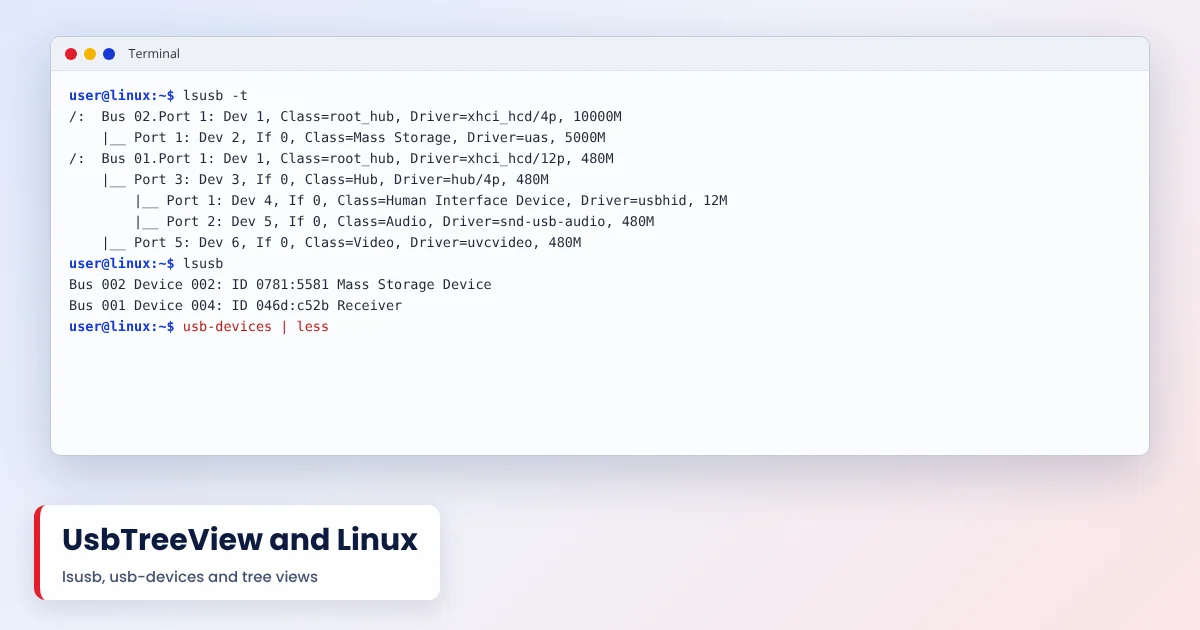
UsbTreeView Linux questions come up often among people who use both operating systems and want the same clear USB picture everywhere. The program itself is built for Windows, but Linux already ships with tools that reveal the device tree, descriptors and link speeds in very similar depth.
Does UsbTreeView Run on Linux?
UsbTreeView is a native Windows program. It gathers its data through Windows device management and the USB hub driver interfaces, and the developer publishes builds only for x64, Win32 and ARM64 editions of Windows. There is no Linux edition and no announced plan for one.
Even if the window opened under a compatibility layer, the information it relies on comes from Windows drivers that simply do not exist on a Linux system. Native Linux utilities read the kernel's own USB data directly, which is both more reliable and more complete.
Linux Tools That Cover the Same Ground
lsusb -t for the Device Tree
Running lsusb -t prints buses, root hubs, hubs and devices as an indented tree. Each line shows the port number, device number, class, driver and link speed, which mirrors the left pane of UsbTreeView remarkably closely.
lsusb -v for Descriptors
The verbose mode, lsusb -v, dumps device, configuration, interface and endpoint descriptors in full. Limiting it with -d VID:PID keeps the output to one device, and running it with sudo lets it read every field that the kernel exposes.
usb-devices for a Readable Summary
The usb-devices script, part of the usbutils package, prints a compact block per device. Lines show the topology, speed, vendor and product IDs, the maximum power request and the driver bound to each interface, which makes it handy for quick comparisons.
usbview for a Graphical Tree
For a point-and-click experience, the GTK program usbview displays a device tree on the left and details on the right. Many distributions package it under that name, and it is the closest visual match to the Windows viewer.
Mapping UsbTreeView Features to Linux Commands
| UsbTreeView feature | Linux equivalent |
|---|---|
| Device tree | lsusb -t or usbview |
| Descriptor details | lsusb -v -d VID:PID |
| Connection speed | lsusb -t speed column or /sys/bus/usb/devices/*/speed |
| Power request | usb-devices (MxPwr field) |
| Drive letters and volumes | lsblk and /dev/disk/by-id |
| Live connection changes | udevadm monitor or dmesg -w |
| Safe removal | udisksctl power-off -b /dev/sdX |
Reading Speed Values on Linux
Linux reports link speed in megabits per second. A value of 1.5 or 12 means a USB 1.x device, 480 means High-Speed USB 2.0, 5000 means SuperSpeed and 10000 or 20000 indicate the faster USB 3.2 modes. The numbers line up directly with the speed names UsbTreeView uses.
A drive that reports 480 while plugged into a blue port tells the same story on either system. Somewhere in the chain, whether cable, hub or port, the connection has fallen back to USB 2.0 and is limiting transfers.
Watching Devices Connect and Disconnect
UsbTreeView refreshes its tree whenever hardware changes. On Linux, udevadm monitor --subsystem-match=usb prints events as they happen, while dmesg -w shows kernel messages, including enumeration errors that often explain why a device never appears.
Leaving one of these commands running in a terminal while you wiggle a cable or switch ports is an effective way to catch intermittent faults. Repeated disconnect and reconnect lines point strongly towards a physical problem.
Dual-Boot and Mixed Environments
On a dual-boot machine, running UsbTreeView in Windows and lsusb -t in Linux on the same hardware is a useful cross-check. Vendor and product IDs are identical on both systems, so you can match devices with confidence.
If a device misbehaves only under one operating system, the hardware path is probably fine and the difference lies in drivers or power settings. That single observation can save hours of swapping cables.
Exploring sysfs Directly
Every tool above ultimately reads the kernel's view of USB under /sys/bus/usb/devices. Each device has a directory named after its bus and port path, such as 1-3.2, which encodes the same port chain UsbTreeView shows on Windows.
Inside those directories, small text files hold values like idVendor, idProduct, speed and bMaxPower. Reading them with cat is a quick way to script checks across many machines without parsing the longer output of lsusb.
Choosing the Right Linux Tool
Each utility suits a slightly different moment. A short overview helps you reach for the right one instead of scrolling through pages of verbose output.
- Use
lsusb -tfirst to see the tree and spot slow links at a glance - Switch to
lsusb -v -d VID:PIDwhen you need every descriptor for one device - Run
usb-deviceswhen comparing power requests and bound drivers - Open usbview when you prefer browsing with a mouse
- Keep
udevadm monitorrunning while you test cables and ports
Mixed Teams and Shared Documentation
Teams that support both Windows and Linux machines benefit from describing USB problems in shared terms. Vendor and product IDs, port chains and speed names mean the same thing on both systems, so a ticket written from a UsbTreeView report can be checked on Linux with lsusb, and the reverse.
Frequently Asked Questions
Is there a UsbTreeView version for Linux?
No. Uwe Sieber publishes UsbTreeView for Windows only. On Linux, lsusb, usb-devices and the graphical usbview program provide equivalent information without any extra downloads beyond your distribution's packages.
What is the best graphical alternative on Linux?
The usbview package offers a tree on the left and device details on the right, closely resembling the Windows viewer. It is available in the repositories of many common distributions.
Can lsusb show which port a device uses?
Yes. The tree mode, lsusb -t, lists bus and port numbers for every device and hub, so you can follow the same port chain that UsbTreeView displays on Windows.
Conclusion
UsbTreeView Linux needs are best met with native tools rather than workarounds. Between lsusb -t, lsusb -v, usb-devices and usbview, you can see the same tree, descriptors, speeds and power requests, and compare them directly with UsbTreeView on any Windows machine you also use.