
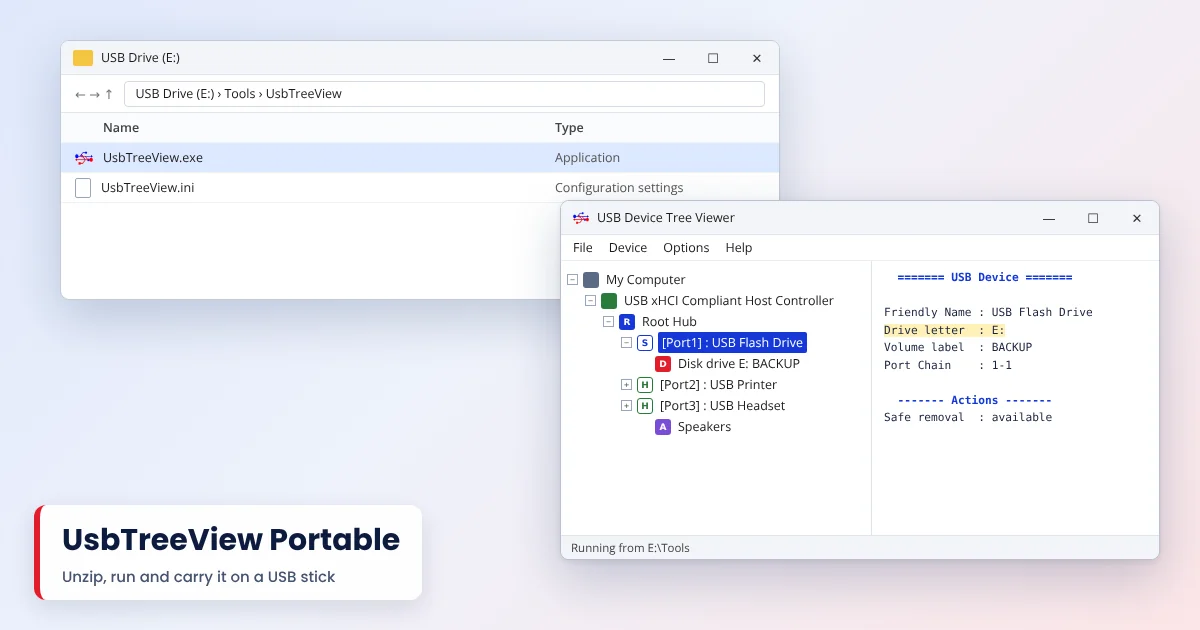
UsbTreeView portable use is not a special edition or a workaround; it is simply how the program is meant to run. Every release arrives as a ZIP archive containing the executable, so you can keep it in any folder, on a network share or on a USB stick and start it on any compatible Windows PC.
Why UsbTreeView Is Portable by Design
The developer distributes UsbTreeView without a setup program. There are no services to register and no drivers to install, because the program reads information Windows already provides through its device management and USB hub interfaces.
That design keeps the footprint tiny, at roughly half a megabyte per archive. It also means removal is as simple as deleting a folder, which appeals to technicians who move between many machines in a day.
Setting Up a Portable Folder
A tidy folder structure makes the tool easy to find and easy to update. Many technicians keep a Tools directory on their stick and give each utility its own subfolder.
- Create a folder such as
E:\Tools\UsbTreeViewon your USB stick - Download the archive for each architecture you need, for example x64 and ARM64
- Extract each archive into its own subfolder so the builds never overwrite one another
- Keep the original ZIP files alongside as a clean backup
Where Settings Are Stored
UsbTreeView remembers preferences such as window position, colours and fonts in an INI file. When the program folder is writable, that file normally sits next to the executable, so your settings travel with the stick.
| Situation | Where the INI file goes |
|---|---|
| Program folder is writable | Next to UsbTreeView.exe |
| No write access, Windows Vista and later | %ALLUSERSPROFILE%\Uwe Sieber |
| No write access, Windows 2000, XP or 2003 | %APPDATA% |
The fallback locations matter on locked-down machines or read-only media. If your settings seem to vanish between sessions, check whether the folder you run the program from allows writing.
Running UsbTreeView from a USB Stick
Plug in the stick, open the folder that matches the PC's architecture and double-click UsbTreeView.exe. The tree appears within moments, and your own stick shows up in it like any other mass storage device.
That last detail deserves attention. Avoid choosing safe removal or a port restart on the stick that holds the running program, because cutting its connection would stop the tool and could interrupt any reports you are saving.
Portable Use on Several PCs
Mixed Architectures
Fleets increasingly mix Intel, AMD and ARM hardware. Carrying both the x64 and ARM64 builds lets you run the native version everywhere, while the Win32 build covers any remaining 32-bit installations.
Locked-Down Machines
Some organisations block executables started from removable drives through application control policies. In that case, ask the IT team whether UsbTreeView can be approved or copied to an allowed location, rather than trying to bypass the restriction.
Sharing Findings from a Portable Session
UsbTreeView can save an XML report of the whole tree, and that report can be loaded again later for review. Saving reports onto the stick lets you compare a faulty PC with a working one back at your desk.
For quick notes, the details pane text can be copied straight into a ticket. The program can also copy a screenshot of the full-height tree to the clipboard, which is useful when a colleague needs to see the structure at a glance.
Keeping a Portable Copy Current
Portable tools are easy to forget about, so stale versions are common. Make a habit of comparing the version in the title bar with the developer's history page every few weeks and refreshing your folders when a new release appears.
Extracting a new archive over an existing folder replaces the executable while leaving the INI file in place. Your colours, fonts and window layout therefore survive each update without any extra effort.
Portable Use in Repair and Lab Work
Repair benches and test labs benefit most from a portable copy. A technician can plug a stick into a customer's PC, open UsbTreeView and see within seconds whether a faulty port, hub or device is to blame, all without leaving software behind afterwards.
In development labs, the same stick can carry several releases for comparison. When a prototype behaves differently on two machines, running the identical build on both rules out the tool itself as a variable.
A Simple Portable Checklist
Before heading out with your USB stick, a quick check avoids surprises on site. These points take a minute and prevent most of the problems technicians run into with portable utilities.
- Confirm the stick contains x64, Win32 and ARM64 folders
- Check that the version in each folder matches the latest history entry
- Make sure the stick is writable so settings and reports can be saved
- Carry the original ZIP archives in case a folder becomes damaged
Using Portable Reports for Comparisons
Saved reports become more valuable over time. Capturing the tree of a healthy machine gives you a baseline, and comparing it with a report from the same machine after a problem appears quickly shows which device or port changed.
Keep reports in a dated folder on the stick so you always know which state each file represents.
Frequently Asked Questions
Is there a separate portable edition of UsbTreeView?
No separate edition exists or is needed. The standard ZIP download is already portable, so the same files work from your hard disk, a network share or a USB stick.
How do I remove UsbTreeView completely?
Delete the folder you extracted it to. If the program ever saved its INI file to %ALLUSERSPROFILE%\Uwe Sieber because the folder was read-only, delete that file as well.
Can I keep several versions side by side?
Yes. Extract each version into its own folder. This is handy when you want to compare behaviour between releases or keep version 4.6.4 for older Windows 7 machines.
Conclusion
UsbTreeView portable operation is built into every download, which makes it an ideal companion on a technician's USB stick. Organise one folder per architecture, keep your INI settings beside the executable and update the archives now and then, and the tool will be ready on any Windows PC you meet.