
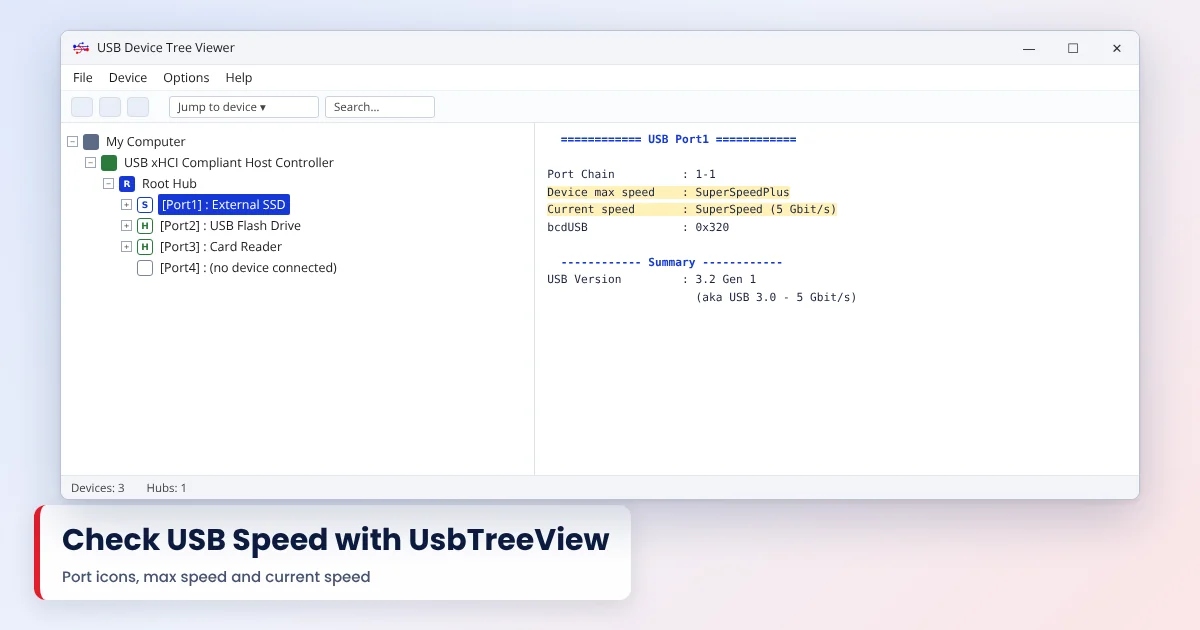
UsbTreeView makes it easy to check USB connection speed, which is often the first thing to confirm when transfers feel slow. Within a few clicks you can see whether a device runs at High-Speed, SuperSpeed or one of the faster modes, and whether it is reaching the speed it was designed for.
USB Speed Names Explained
USB versions and speed names have changed several times, which causes plenty of confusion. UsbTreeView uses the official speed names, and its summary section adds the more familiar marketing terms alongside them.
| Speed name | Signalling rate | Commonly known as |
|---|---|---|
| Low-Speed | 1.5 Mbit/s | USB 1.x keyboards and mice |
| Full-Speed | 12 Mbit/s | USB 1.1 |
| High-Speed | 480 Mbit/s | USB 2.0 |
| SuperSpeed | 5 Gbit/s | USB 3.2 Gen 1, also called USB 3.0 |
| SuperSpeedPlus | 10 Gbit/s | USB 3.2 Gen 2 |
| SuperSpeedPlus | 20 Gbit/s | USB 3.2 Gen 2x2 |
Signalling rates describe the link, not real file copy speeds. Protocol overhead and the device's own internal speed always keep actual transfers below these figures.
Reading Speed at a Glance in the Tree
The device tree already hints at speed before you open any details. Port icons carry an "H" when a High-Speed device is attached and an "S" when a SuperSpeed device is attached, so scanning down a list of ports shows which links run at USB 3 rates.
This quick view is ideal for spotting patterns. If every device on one controller shows "H" while another controller shows "S", you have probably found which ports are wired for USB 2.0 only.
Comparing Maximum and Current Speed
Select a device and look at the details pane. Recent versions list the device's maximum supported speed alongside the speed of the current connection, and the summary explains the USB version in plain terms, such as 3.2 Gen 1 (aka USB 3.0 - 5 Gbit/s).
When both values match, the device is performing as designed on that port. When the current speed is lower than the maximum, something in the path is holding it back, and that gap is exactly what you want to investigate.
Common Reasons a Device Runs Slower
A speed mismatch almost always has a physical cause. Working through the likely candidates in order usually finds the culprit quickly.
- A USB 2.0 cable used with a USB 3 device, which limits the link to High-Speed
- A USB 2.0 hub, dock or extension somewhere between the device and the PC
- A front-panel port wired to a USB 2.0 header on the motherboard
- A loose or damaged connector that forces the device to fall back to a slower mode
- An older port that simply does not support the faster modes
Tracing the Bottleneck Through Hubs
The Port Chain field shows every hub port between the device and its host controller. Walk up the tree from the device and check the speed of each hub along the way, because a single slower hub limits everything connected below it.
Docks are a frequent surprise. Many contain several internal hubs, and some of their sockets connect through a USB 2.0 hub even when others run at SuperSpeed, which the tree makes plain.
Checking Front and Rear Ports
Plug the same device into a front-panel port and then a rear port, noting the current speed each time. Rear ports connect directly to the motherboard and usually offer the fastest controllers, which makes them a useful reference point.
Confirming the Fix
After swapping a cable, moving to another port or removing a hub, watch the tree refresh and select the device again. The current speed should now match the maximum, confirming that the change worked.
Repeat a real file copy afterwards to see the practical improvement. The speed reading confirms the link is right, while the copy shows how much difference it makes to your daily work.
What Speed Readings Do Not Tell You
A correct link speed does not guarantee fast transfers. A cheap flash drive may connect at SuperSpeed yet write slowly because of its internal memory, and that limit sits inside the device rather than on the USB connection.
Speed readings also say nothing about file system or driver behaviour. They answer one precise question, whether the link is running at its rated mode, and that is often exactly the answer you need first.
Speed Checks for Common Devices
Different devices have very different needs, so a lower speed is not always a fault. A keyboard or mouse running at Low-Speed or Full-Speed is entirely normal, because those devices send tiny amounts of data and were never designed for faster modes.
External SSDs, capture devices and fast flash drives are where speed matters. For these, the current speed should match the maximum the device supports, otherwise you are leaving real performance unused.
| Device type | Typical expected speed |
|---|---|
| Keyboard or mouse | Low-Speed or Full-Speed |
| Webcam or audio interface | High-Speed or faster |
| Basic flash drive | High-Speed or SuperSpeed |
| External SSD | SuperSpeed or SuperSpeedPlus |
Interpreting Unexpected Readings
A reading that looks wrong is worth a second check before you start replacing hardware. Unplug the device, wait a moment, connect it again and refresh the tree, because a single failed negotiation can leave a device at a lower speed until it is reconnected.
Making Speed Checks Part of Routine Maintenance
Speed problems often creep in unnoticed. A cable swapped during a desk move or a new dock added to a workstation can quietly drop an important drive to USB 2.0, and nobody notices until a large backup takes far longer than usual.
A quick look at the tree after any hardware change catches these issues early. Checking that key devices still show an "S" icon takes seconds and avoids slow transfers later.
- Check external backup drives after moving or rewiring a desk
- Recheck docks and hubs after firmware or hardware changes
- Note expected speeds for important devices so changes stand out
- Save an XML report of a correctly configured system as a reference
Conclusion
UsbTreeView turns USB speed checks into a quick, reliable process. Scan the H and S port icons, compare maximum and current speed in the details pane and follow the port chain through any hubs. When the two speeds match, the connection is doing its job and any remaining slowness lies elsewhere.